HDMI vs DisplayPort for Gaming
Whether you’re setting up a new dual-monitor display, optimizing your computer for gaming, or just trying to fix blurry text, knowing your exact screen resolution is the critical first step. Resolution dictates how many pixels (width by height) your monitor displays. Higher numbers mean sharper images and more screen real estate.
Your display resolution is distinct from your screen’s physical size. This is a concept measured in Pixels Per Inch (PPI), which describes how tightly those pixels are packed together.
In this guide, we’ll show you exactly how to find your screen resolution on both Windows 11 and Windows 10 in just a few clicks.
Note: You can view your monitor’s active resolution and refresh rate on our homepage.
Method 2: How to check resolution on Windows 11
Windows 11 has streamlined the Settings app, making it very easy to find your display specifications. Follow these steps:
- Right-click anywhere on an empty space on your desktop.
- Select Display settings from the context menu.
- The Settings window will open. Scroll down to the Scale & layout section.
- Look for the box labeled Display resolution. The numbers shown here (e.g., 1920 x 1080) are your current screen resolution.
- If the box says “(Recommended)” next to the numbers, you are using the optimal native resolution for your monitor.
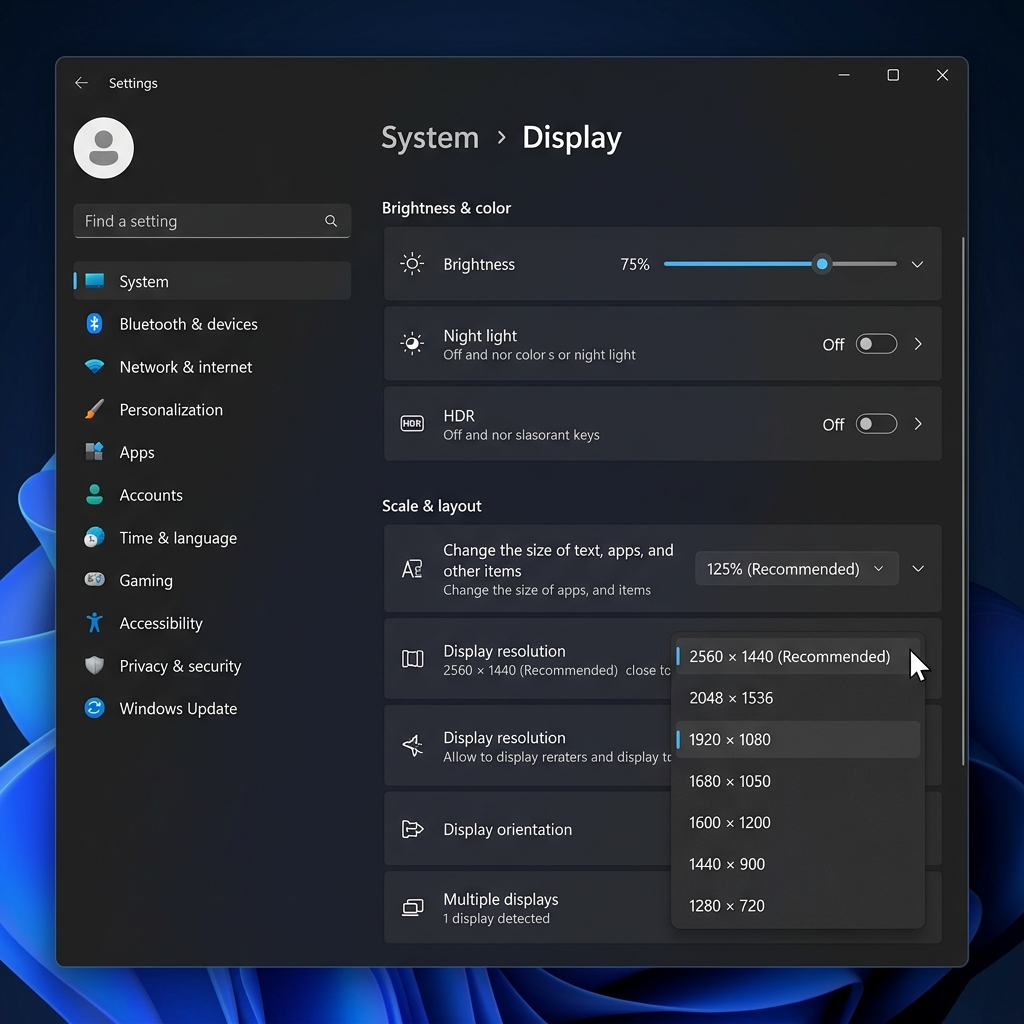
Method 3: How to check resolution on Windows 10
The process on Windows 10 is nearly identical to Windows 11, though the menus look slightly different.
- Right-click on an empty area of your desktop.
- Click on Display settings at the bottom of the menu.
- In the window that opens, scroll down to the Scale and layout section.
- Find the drop-down menu under Display resolution. The value currently selected is your active resolution.
Method 4: Use the Command Prompt for advanced users
If you prefer using the keyboard or need to check the resolution remotely via a script. You can use the Windows Command Prompt (cmd) or PowerShell.
- Press the Windows Key, type
cmd, and hit Enter. - Copy and paste the following command into the terminal:
wmic path Win32_VideoController get CurrentHorizontalResolution,CurrentVerticalResolution
This will output your exact horizontal and vertical pixel count directly in the terminal.
Common Windows display resolutions reference
Windows supports a wide range of monitor resolutions. Here are the most common ones you’ll encounter in Display Settings, along with their industry names and ideal screen sizes:
| Resolution | Name | Aspect Ratio | Best For |
|---|---|---|---|
| 1920 × 1080 | Full HD (1080p) | 16:9 | 24-inch monitors, budget gaming |
| 2560 × 1440 | QHD / Quad HD (1440p) | 16:9 | 27-inch monitors, productivity |
| 3840 × 2160 | Ultra HD / 4K UHD | 16:9 | 32-inch+ monitors, content creation |
| 2560 × 1080 | Ultra-Wide Full HD | 21:9 | Wide-screen, cinematic work |
CSS pixels vs. physical pixels on Windows
When you check your resolution in Display Settings, Windows shows your physical pixel count, which is the true hardware resolution your monitor contains. However, the number that websites and apps use internally is the CSS pixel count, which is calculated by dividing the physical pixels by the Device Pixel Ratio (DPR). On a standard 1080p monitor, the DPR is 1, so CSS pixels equal physical pixels.
But on a 4K display with 150% scaling enabled, Windows reports a DPR of 1.5, meaning a 3840px-wide screen presents itself to software as only 2560px wide. This is also why color depth (typically 24-bit True Color on modern monitors) stays constant regardless of resolution.
Why is my Windows resolution blurry or grayed out?
If your resolution is incorrect, blurry, or the drop-down menu is grayed out and you cannot change it, the issue is almost always related to your graphics drivers. Windows is likely using the “Microsoft Basic Display Adapter” fallback driver.
To fix this, you need to update your graphics drivers:
- Go to Settings > Windows Update and check for optional updates.
- Or download the official drivers directly from Nvidia, AMD, or Intel depending on your hardware.
For a complete walkthrough on correcting your resolution once you’ve identified the problem, see our guide to changing screen resolution on Windows and Mac.
Advanced display troubleshooting
If you are a power user, gamer, or designer, standard display settings might not be enough. Understanding how Windows handles EDID (Extended Display Identification Data) can save you hours of troubleshooting.
When you plug in a monitor, it sends an EDID packet to your graphics card containing its supported resolutions, refresh rates, and color spaces. If this handshake fails, which is often due to a bad DisplayPort or HDMI cable, Windows will default to a safe but blurry resolution like 1024x768 or 800x600.
To fix EDID handshake issues, always try a VESA-certified cable first. If that fails, tools like Custom Resolution Utility (CRU) allow you to override the EDID and force Windows to output your monitor’s native resolution. Be warned: forcing an unsupported resolution can result in a blank screen, requiring you to boot into Safe Mode to reset your display drivers.
Multi-monitor setup considerations
Running multiple monitors with different resolutions is incredibly common but presents unique challenges for Windows. If you pair a 4K (3840x2160) monitor with a 1080p (1920x1080) monitor, moving windows between them can cause erratic resizing.
This happens because Windows assigns a different DPI scaling percentage to each screen. To mitigate this, open Display Settings, select each monitor, and adjust the Scale percentage until windows appear roughly the same physical size on both screens.
For the best multi-monitor experience, always plug high-resolution, high-refresh-rate monitors directly into your graphics card (GPU) rather than your motherboard. Motherboard video outputs rely on your CPU’s integrated graphics, which often lack the bandwidth to drive multiple 4K displays at 60Hz or higher.
Frequently asked questions
How do I change screen resolution?
If you need to adjust your resolution, simply open Settings, go to System > Display, and select a new option from the Display Resolution dropdown. For more detailed instructions, see our guide on changing your resolution.